Reading
Feeds
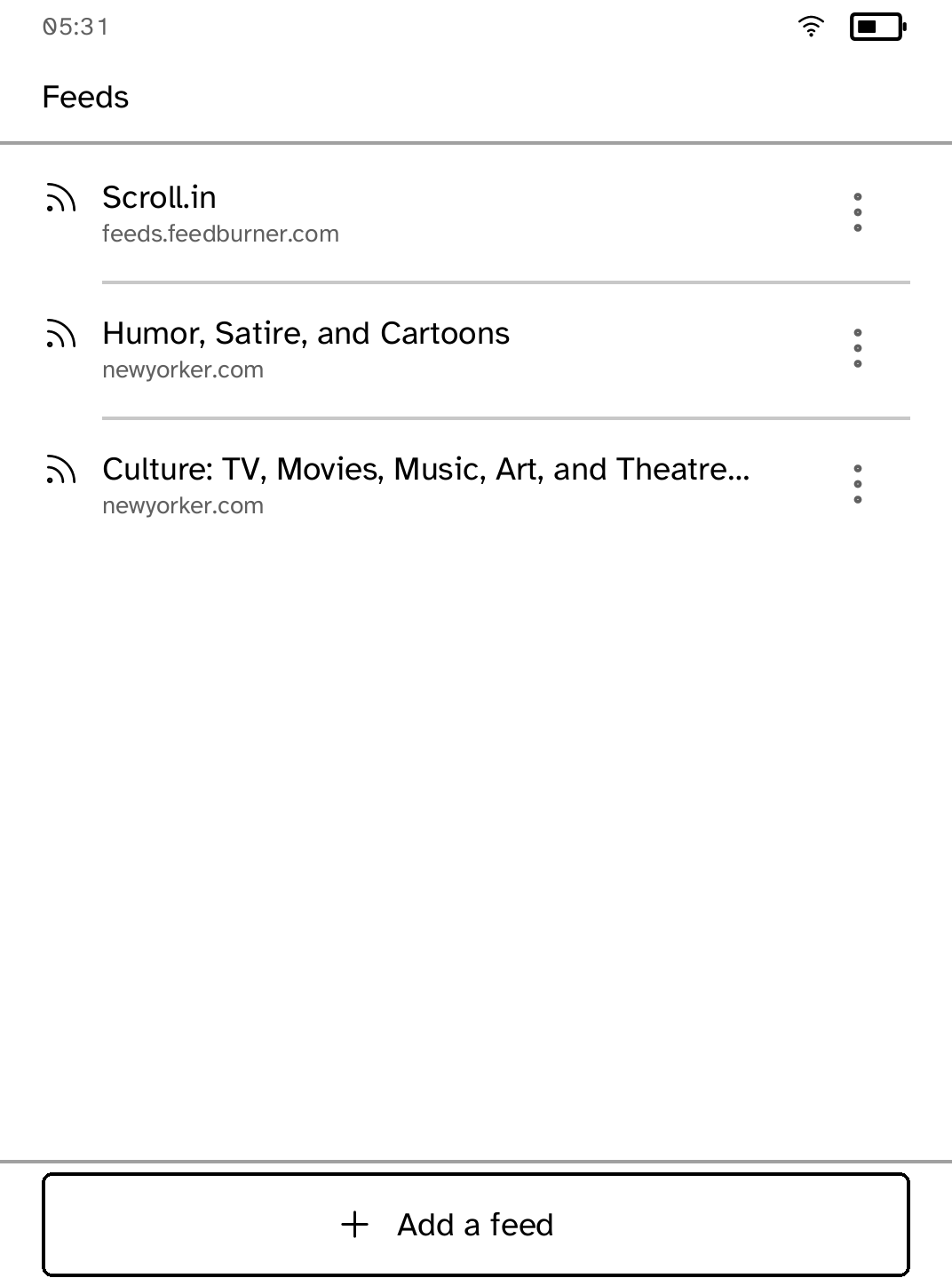
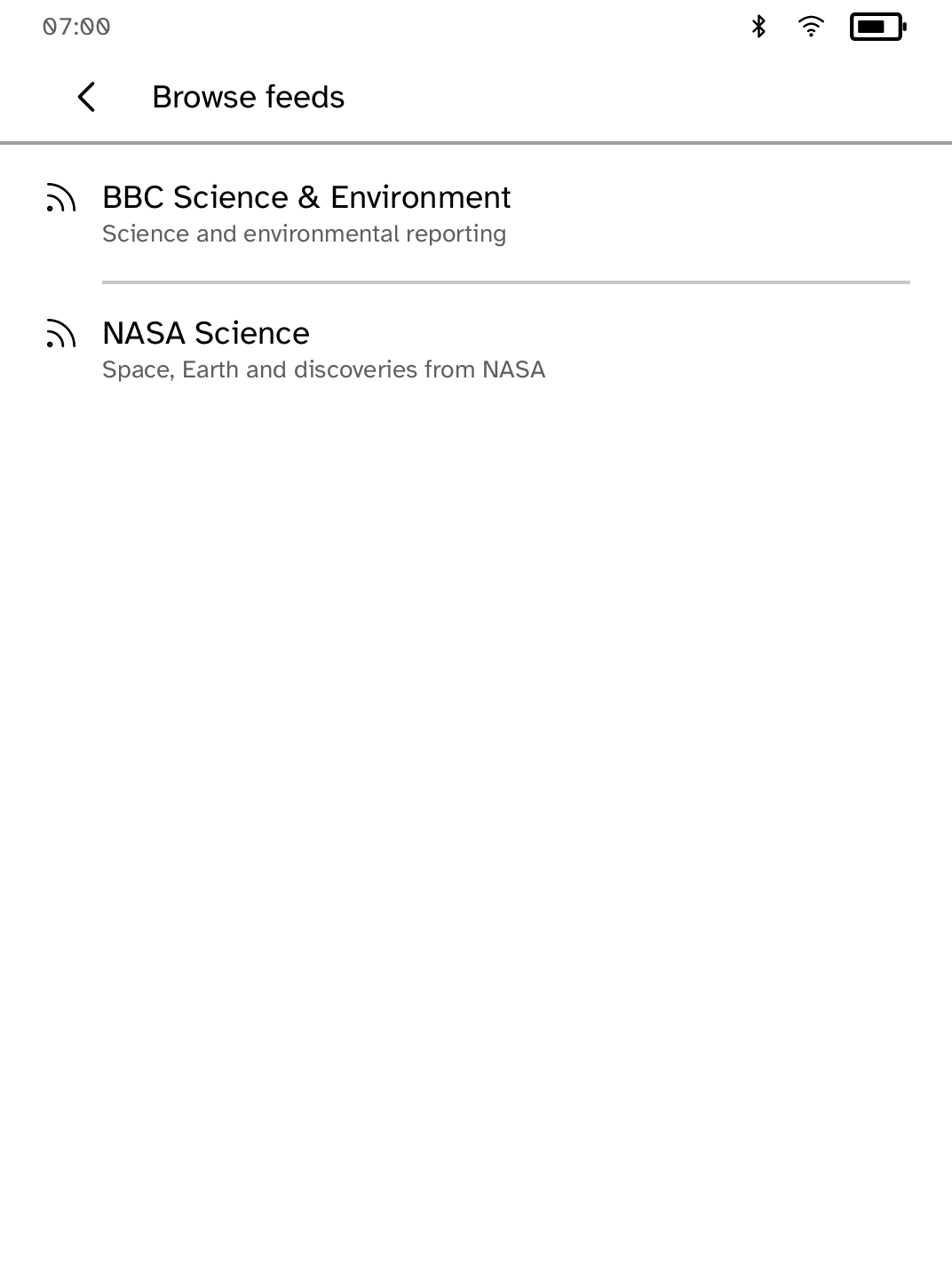
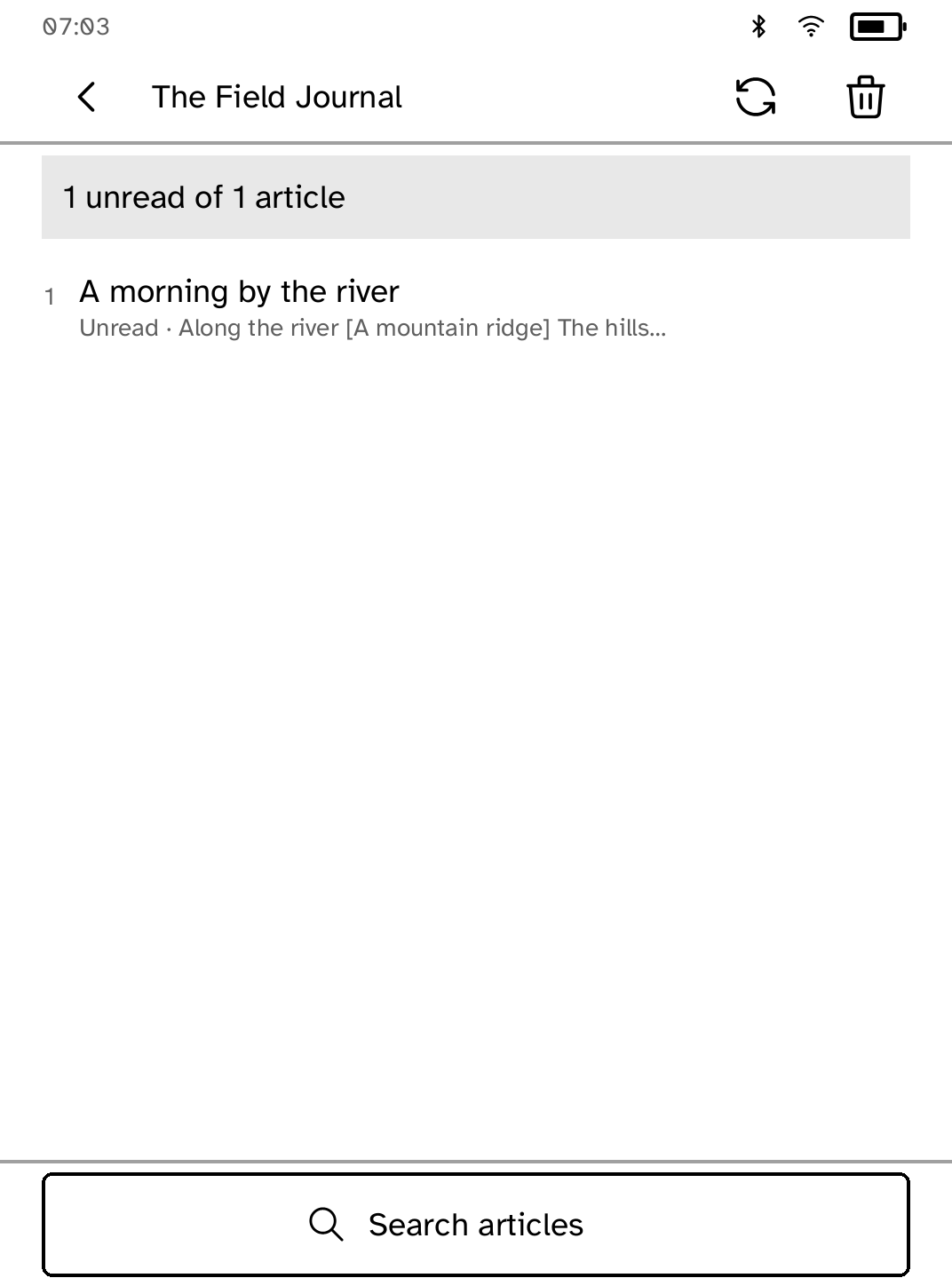
Follow feeds, search saved articles and read offline with images.
- Version
- 1.0.14
- Permissions
- network
- Requires
- Cobalt 0.3.31
New in 1.0.14
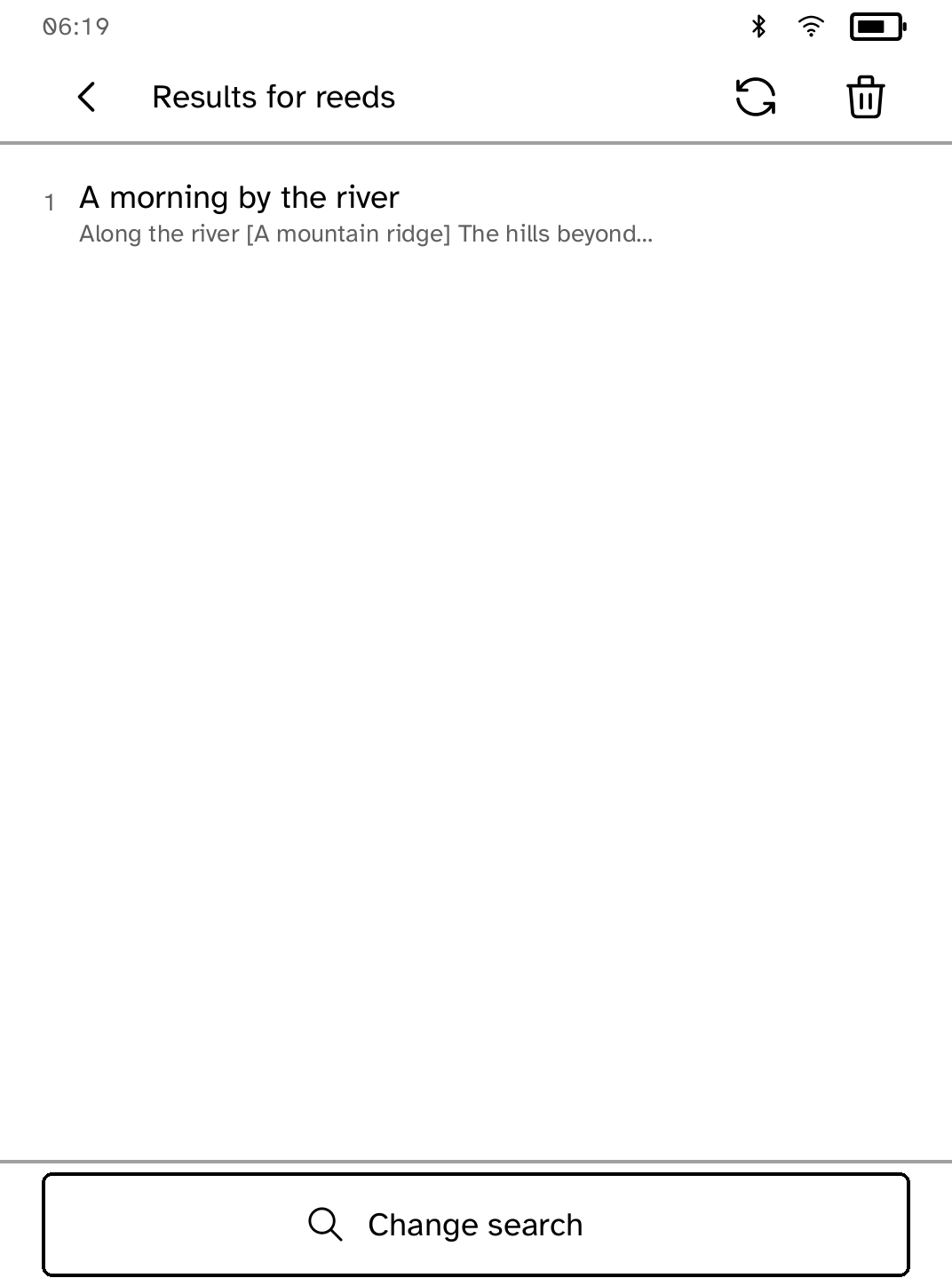
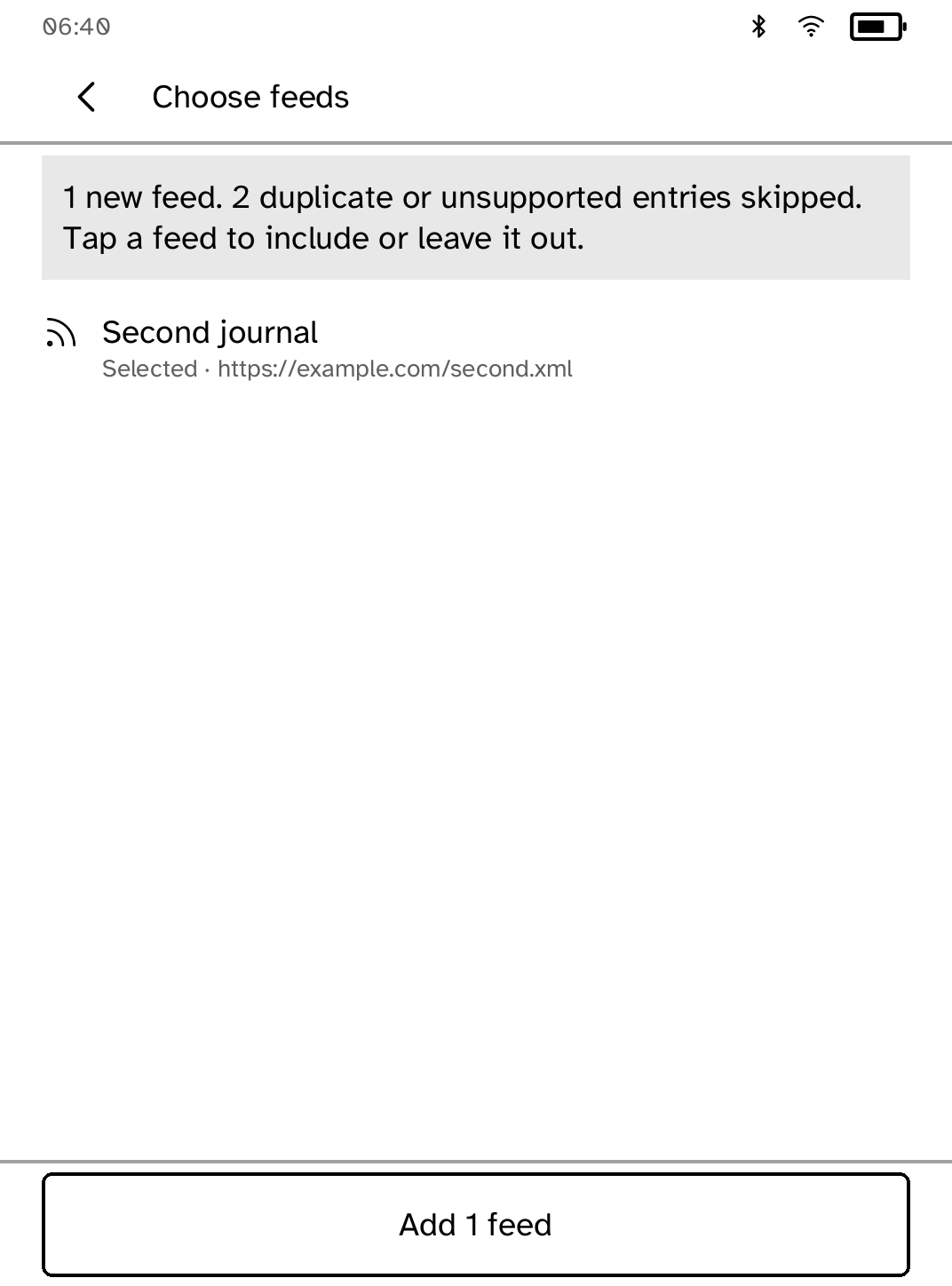
Addresses and searches are typed on Cobalt's own keyboard, feeds from an OPML file are ticked and added together, and each feed shows its unread count at the edge of its row.
App setup
Before you install
- Nothing is needed on a computer to follow feeds: add them on the reader. These steps bring a subscription list over from another feed reader.
- Set up the reader once over USB, if you have not already.
kobo setup - Export your subscriptions from the other feed reader as an OPML file, and check it.
kobo feeds check subscriptions.opml - Send the file to the reader. Then open Feeds and choose Import OPML.
kobo feeds push subscriptions.opml
Commands need the kobo command on macOS, Linux or Windows WSL. This installs it ready-built, without touching the reader:
curl -fsSL https://bandarlabs.github.io/Cobalt/install.sh | sh -s -- --no-setup
New to Cobalt?
Install Cobalt from your browser
Plug your Kobo into this computer and install Cobalt in about a minute. After that, apps install over Wi-Fi.
Works in Chrome, Edge and Opera. Check your Kobo is supported.
Already have Cobalt?
Link your Kobo to install
On your Kobo, open App Store, tap the globe in the top bar and choose Link browser. Scan the QR code, or enter the pairing code and verification key.
Install on your Kobo
Your Kobo checks the app's signature before installing it.