Reading
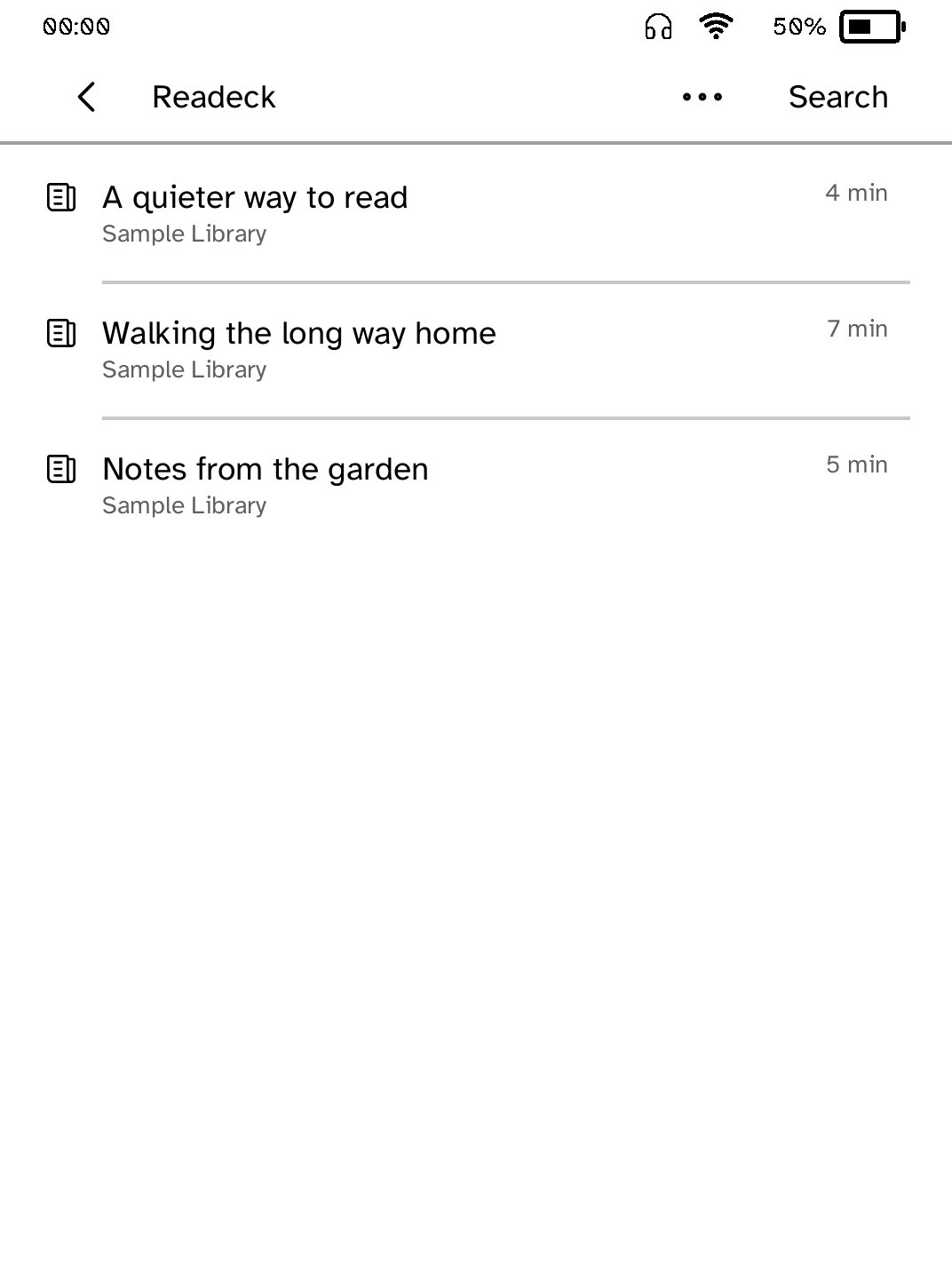
Readeck
Read and search your saved Readeck articles. Needs an account.
- Version
- 0.1.2
- Permissions
- network, frontlight-control
- Requires
- Cobalt 0.3.31
New in 0.1.2
Your API token, server address and searches are typed on Cobalt's own keyboard, and the reader saves the token without the app seeing it. Connecting shows its three steps, and a QR code opens the token page on a phone.
App setup
Before you install
- Set up the reader once over USB, if you have not already. Readeck must be reachable over HTTPS.
kobo setup - In Readeck, create an API token that can read and update bookmarks (Settings, API tokens).
- Connect Readeck from your computer. It asks for the server and the token, checks them, and saves both on the reader while Cobalt runs. Open Readeck, or tap Check again if it is already open.
kobo connect readeck - Articles you open are kept on the reader, so they read the same without Wi-Fi.
Commands need the kobo command on macOS, Linux or Windows WSL. This installs it ready-built, without touching the reader:
curl -fsSL https://bandarlabs.github.io/Cobalt/install.sh | sh -s -- --no-setup
New to Cobalt?
Install Cobalt from your browser
Plug your Kobo into this computer and install Cobalt in about a minute. After that, apps install over Wi-Fi.
Works in Chrome, Edge and Opera. Check your Kobo is supported.
Already have Cobalt?
Link your Kobo to install
On your Kobo, open App Store, tap the globe in the top bar and choose Link browser. Scan the QR code, or enter the pairing code and verification key.
Install on your Kobo
Your Kobo checks the app's signature before installing it.