
Developer
AI Command Center
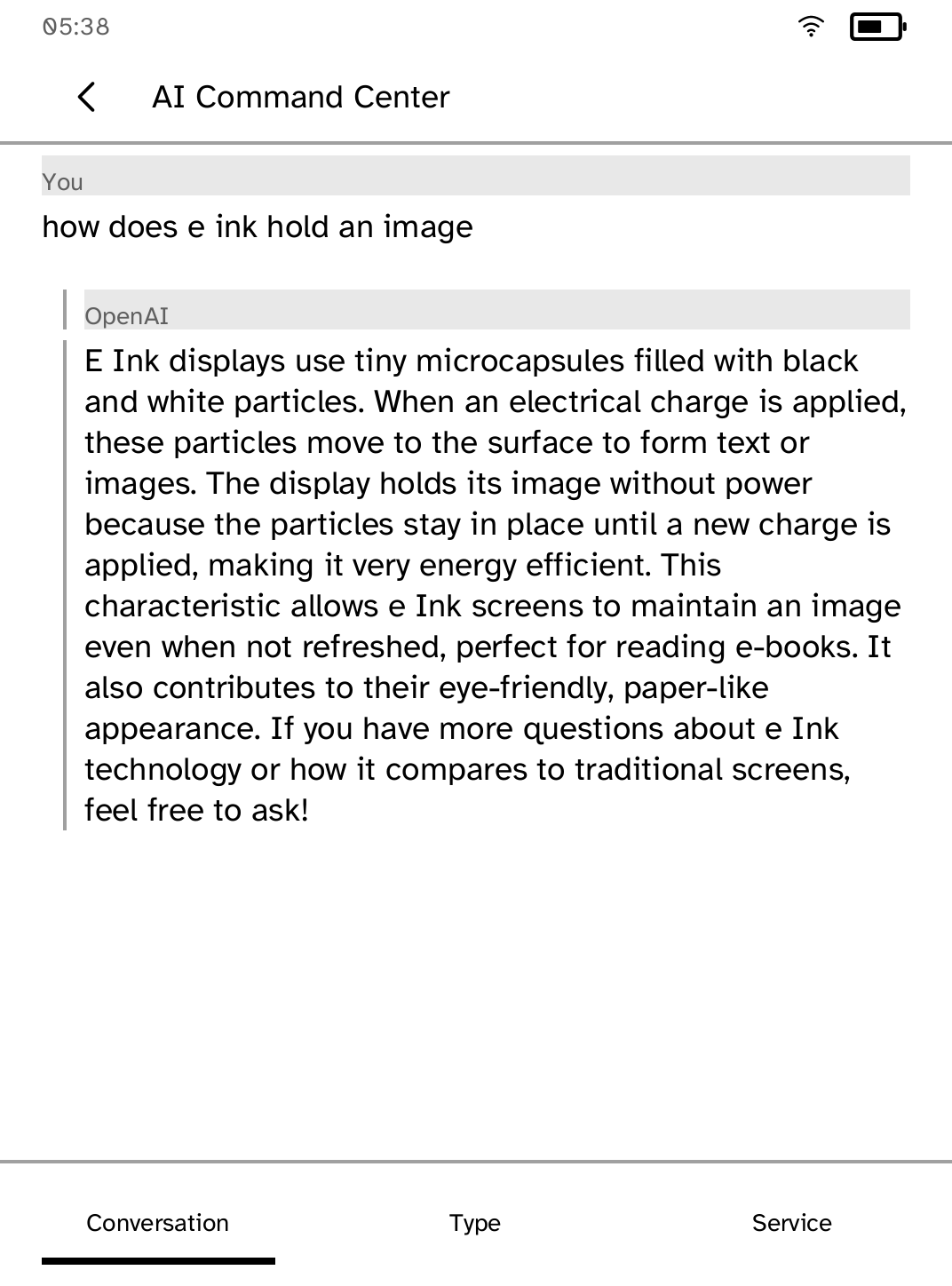
Ask a question, then read and navigate the answer with touch controls. Needs an account.
- Version
- 1.0.16
- Permissions
- network
- Requires
- Cobalt 0.3.31
New in 1.0.16
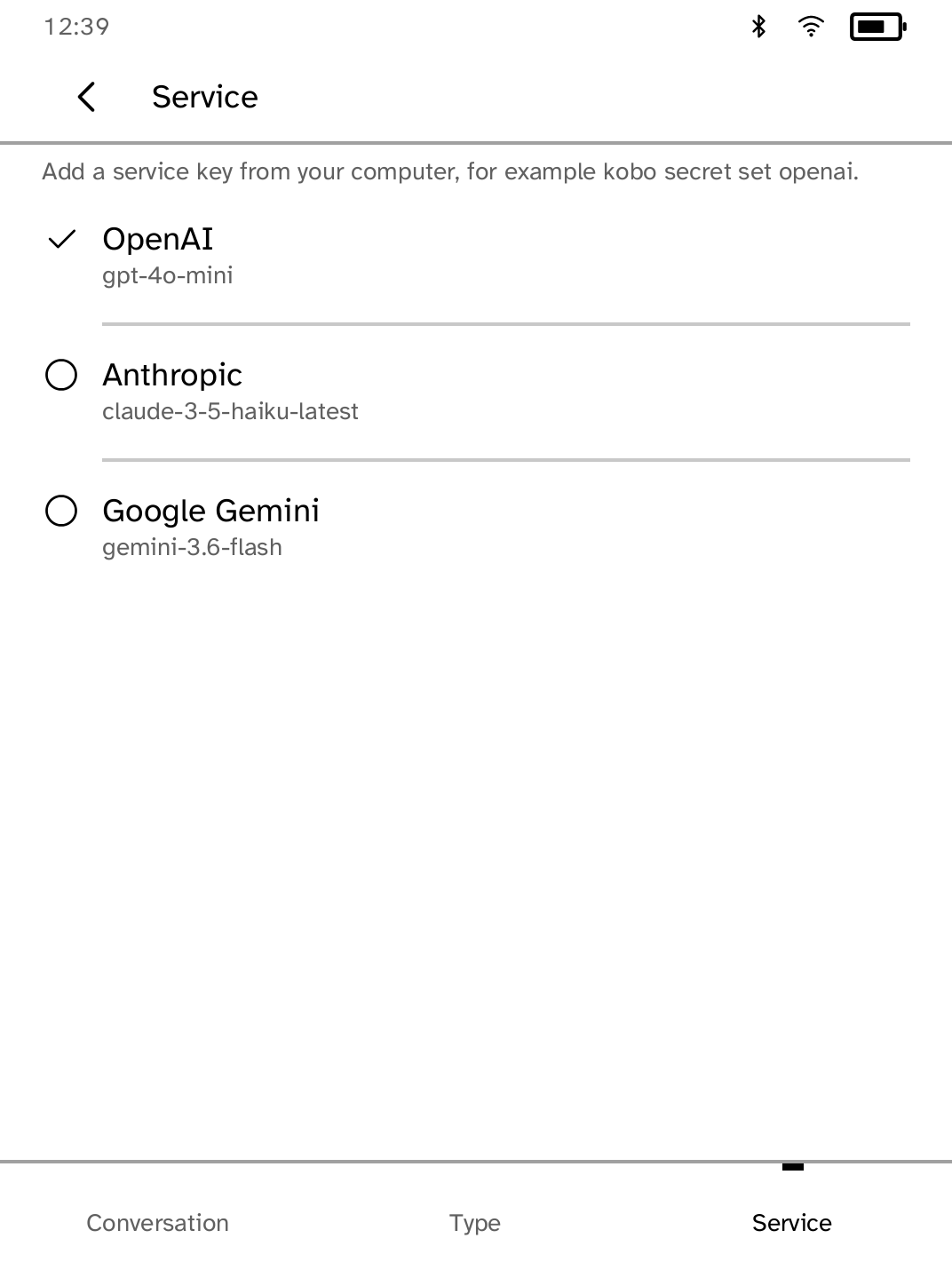
Messages are typed on Cobalt's own keyboard, which names the service that will answer, and the service list marks the one in use.
App setup
Before you install
- Set up the reader once over USB, if you have not already.
kobo setup - Create an API key with OpenAI, Anthropic or Google Gemini. Save it in a private file named for the service: ~/.openai, ~/.anthropic or ~/.gemini.
- Install the key on the reader under the same name: openai, anthropic or gemini.
kobo secret set openai - Open AI Command Center. If the key is not for OpenAI, tap Service and choose its service, then tap Type and ask.
Commands need the kobo command on macOS, Linux or Windows WSL. This installs it ready-built, without touching the reader:
curl -fsSL https://bandarlabs.github.io/Cobalt/install.sh | sh -s -- --no-setup
New to Cobalt?
Install Cobalt from your browser
Plug your Kobo into this computer and install Cobalt in about a minute. After that, apps install over Wi-Fi.
Works in Chrome, Edge and Opera. Check your Kobo is supported.
Already have Cobalt?
Link your Kobo to install
On your Kobo, open App Store, tap the globe in the top bar and choose Link browser. Scan the QR code, or enter the pairing code and verification key.
Install on your Kobo
Your Kobo checks the app's signature before installing it.